1. What Garden Reads is
Garden Reads is an Android app for reading and listening to your personal book collection. It opens the formats you already own, keeps everything on your device by default, and wraps the experience in a quiet garden aesthetic — an animated sky‑and‑grass scene in the library drawer, frosted‑glass reading pop‑ups, and seasonal page themes.
Three principles run through the whole app:
- You own your library. Books live in the app's storage; nothing is streamed from us. Optional Google Drive sync is your Drive, and you choose exactly what it carries.
- Private by design. The AI assistant runs entirely on your device (no cloud calls, ever). Dictionaries, translations packs, and reading data stay local unless you turn on sync.
- Comfortable, not busy. Sensible defaults, soft theming, and controls that stay out of the way while you read.
First run
A short onboarding introduces the app, helps you import your first books (or add free classics in one tap), and offers to set up optional cloud sync — so a fresh install is never an empty shelf.


Supported formats
| Category | Formats |
|---|---|
| Ebooks | EPUB, MOBI, AZW, AZW3, TXT, Markdown |
| Documents | |
| Comics | CBZ, CBR |
| Audiobooks | M4B, MP3 (incl. chaptered M4B) |
Ebooks render in a tuned reading engine; PDFs use a native page renderer; comics show full‑bleed pages; audiobooks open in the player. The reader picks the right engine automatically per book.


2. AI Learning Mode (Ask Gemma)
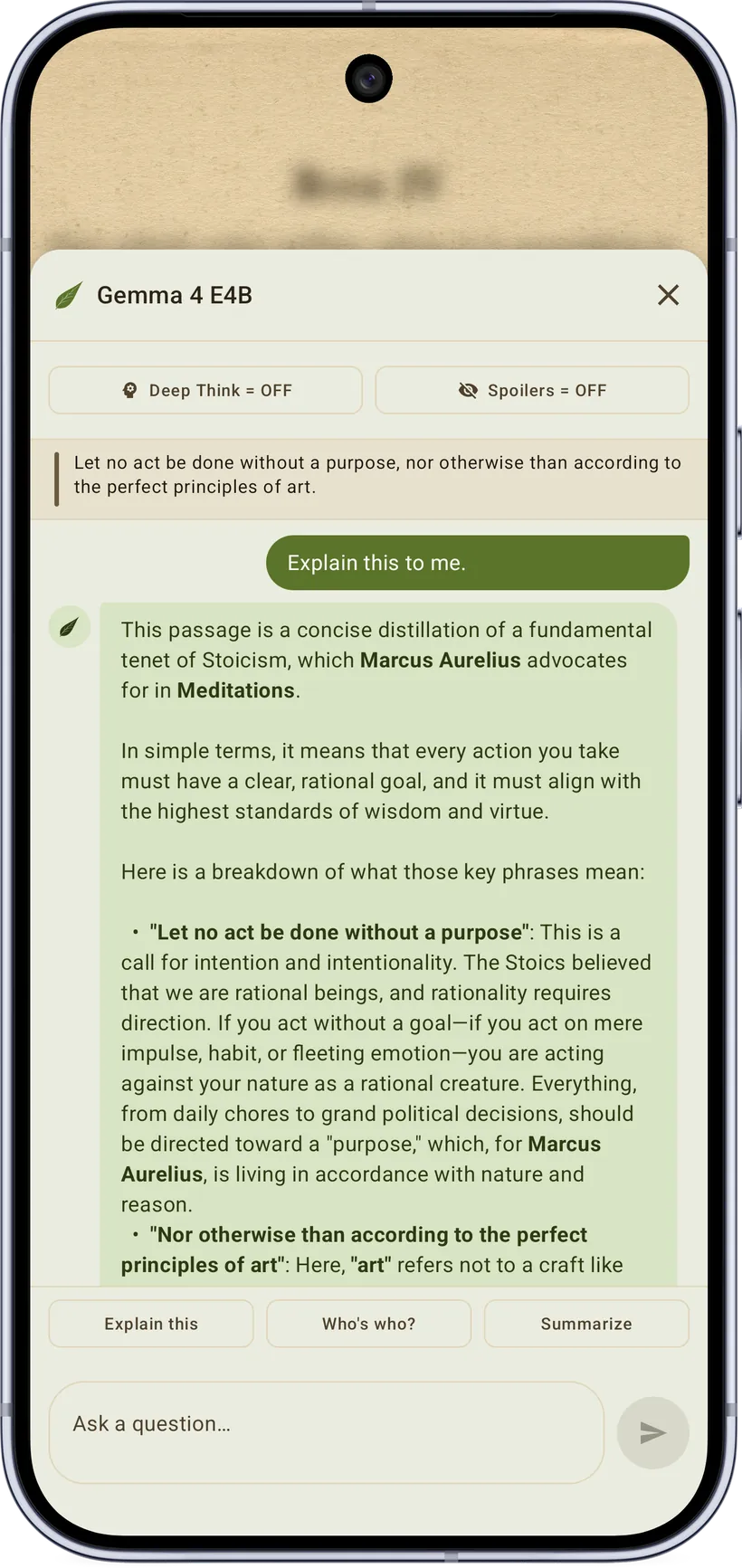
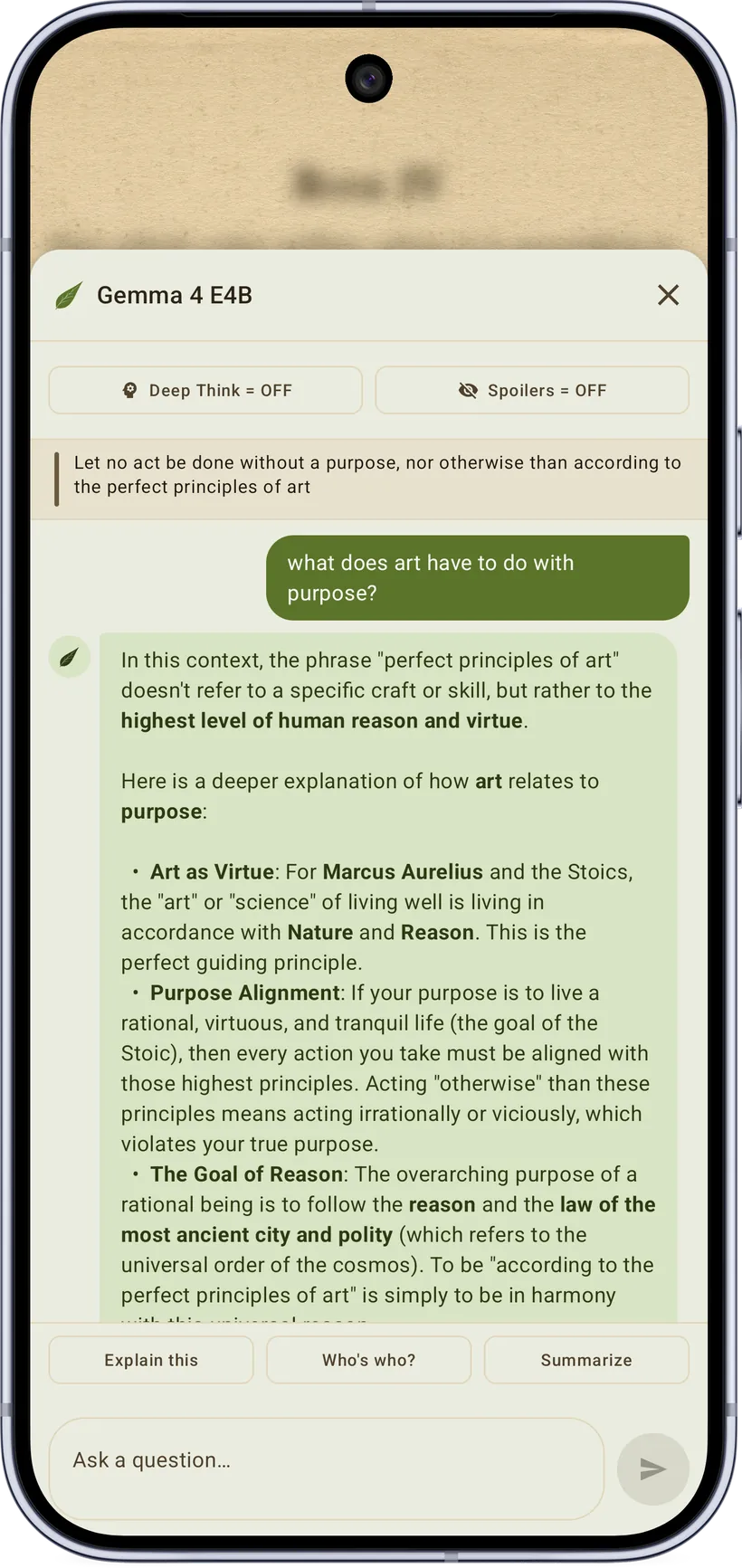
Make use of the hardware you paid for. Garden Reads includes an optional on‑device AI assistant powered by Gemma 4. It is downloaded once and then runs entirely locally — your books, thoughts and questions never leave the device, and it works offline.
- Ask Gemma from the selection bar to ask about a passage; follow‑up questions reuse the conversation, and the model is primed with the book's context (series, language, genre, synopsis).
- Deep Think = ON/OFF trades speed for more thorough answers.
- Spoilers = ON/OFF lets you keep the assistant from revealing what's ahead.
It's framed as a learning tool, not a shortcut: use it to understand tough chapters and explore ideas, while your thinking stays yours.


3. The Reader
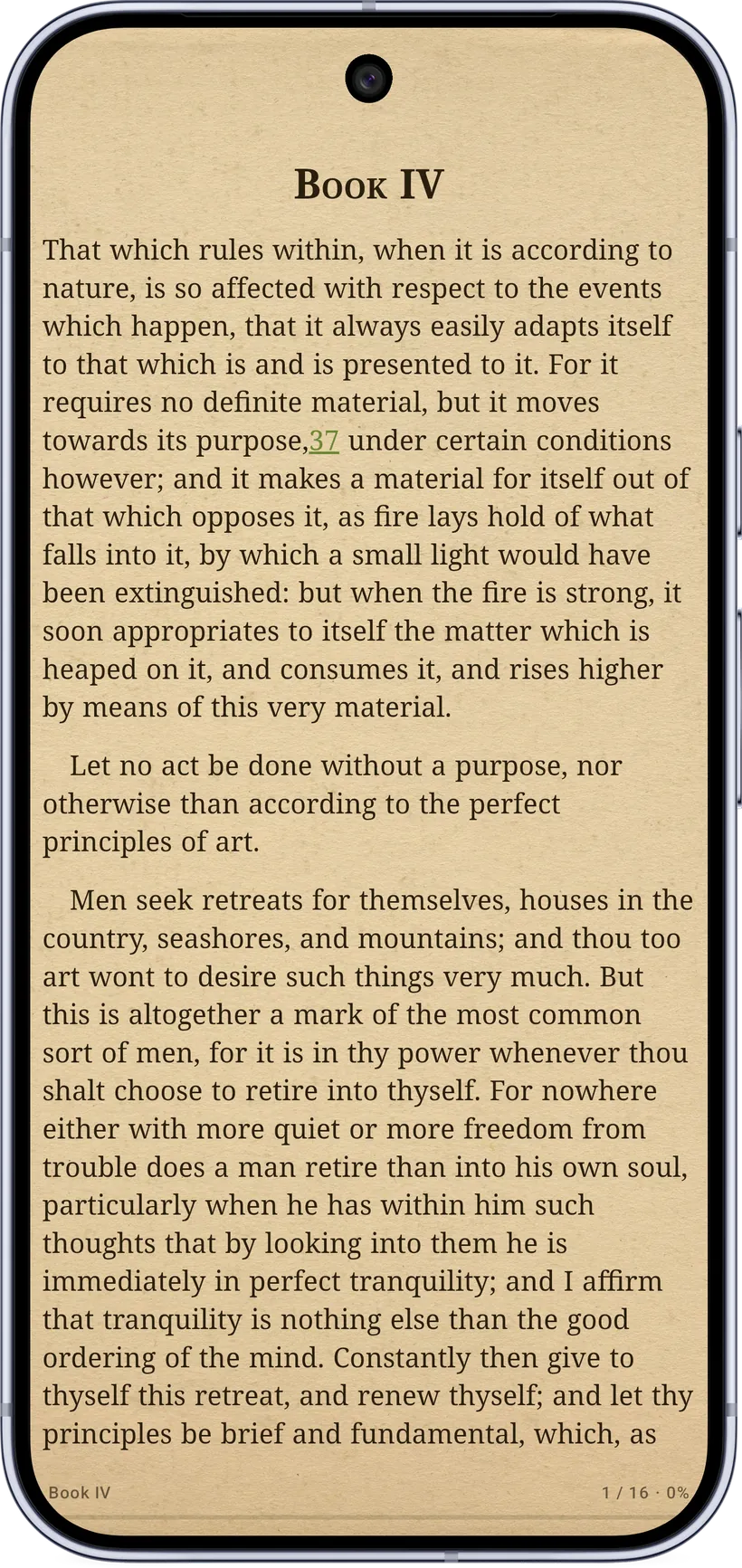
Open a book to read. Tap the center of the page to toggle the menu. It will expose the table of contents, search, settings, bookmarks, highlights, the per‑book vocabulary sheet, and more.


Navigation
- Paged mode turns pages with a tap on the page edges and/or a swipe (you choose: tap‑only, swipe‑only, or both), with page‑turn animations: none, slide, curl, or fade.
- Scrolling mode is one continuous vertical flow.
- Volume keys can optionally turn pages. (Pro.)
- Reading position is saved continuously and resumes exactly where you left off.
4. Themes & reading comfort
Make the page yours — themes, typography, and a distraction‑free Zen mode, all applied live from the reader's settings.
Themes
Reader themes change the page background and ink:
- Core: Light, Dark, Sepia, OLED (pure black).
- Seasonal, the Garden Reads special: Spring (soft lime), Summer (peach), Autumn (amber), Winter (icy blue) — gentle, desaturated tints with deep, hue‑matched ink for strong contrast.
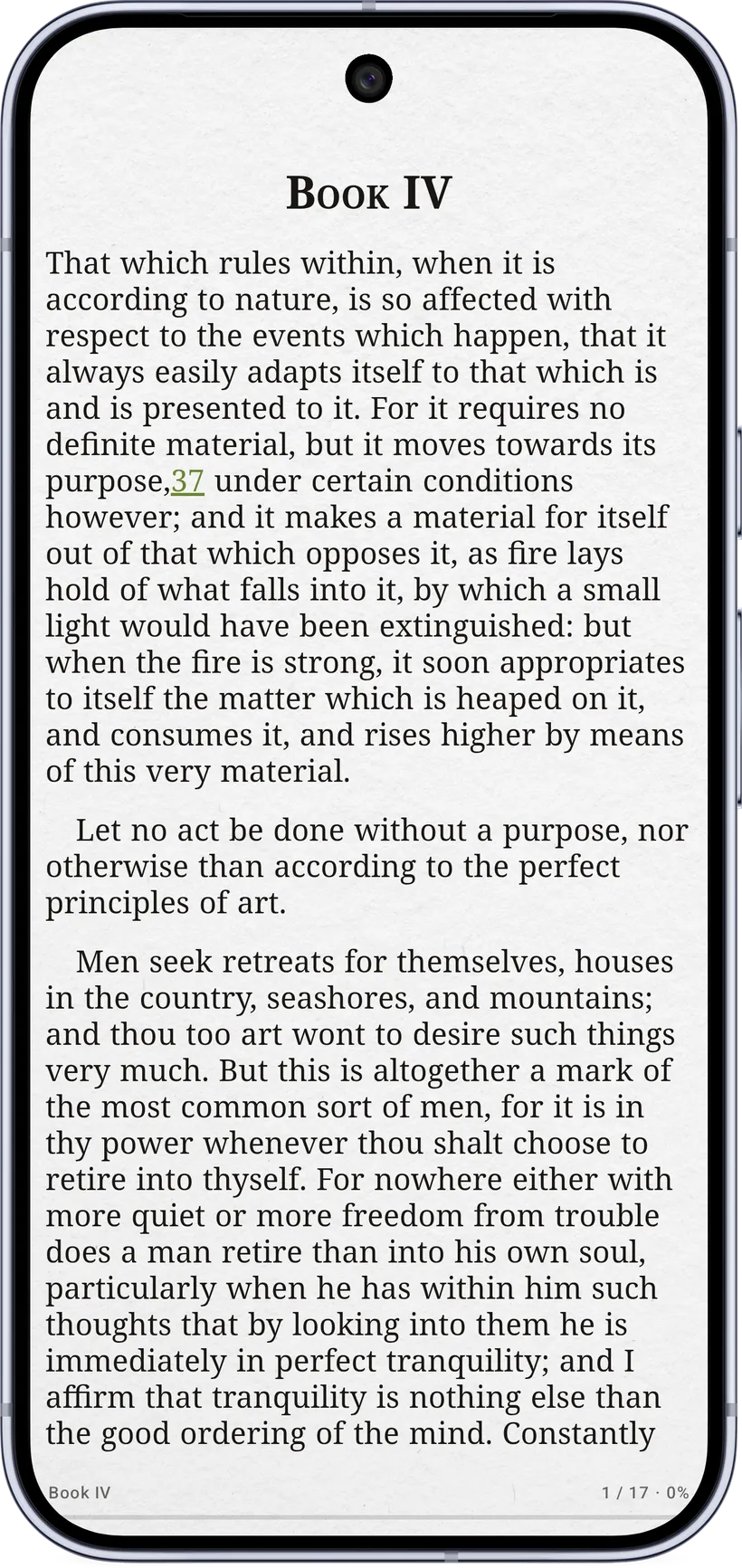
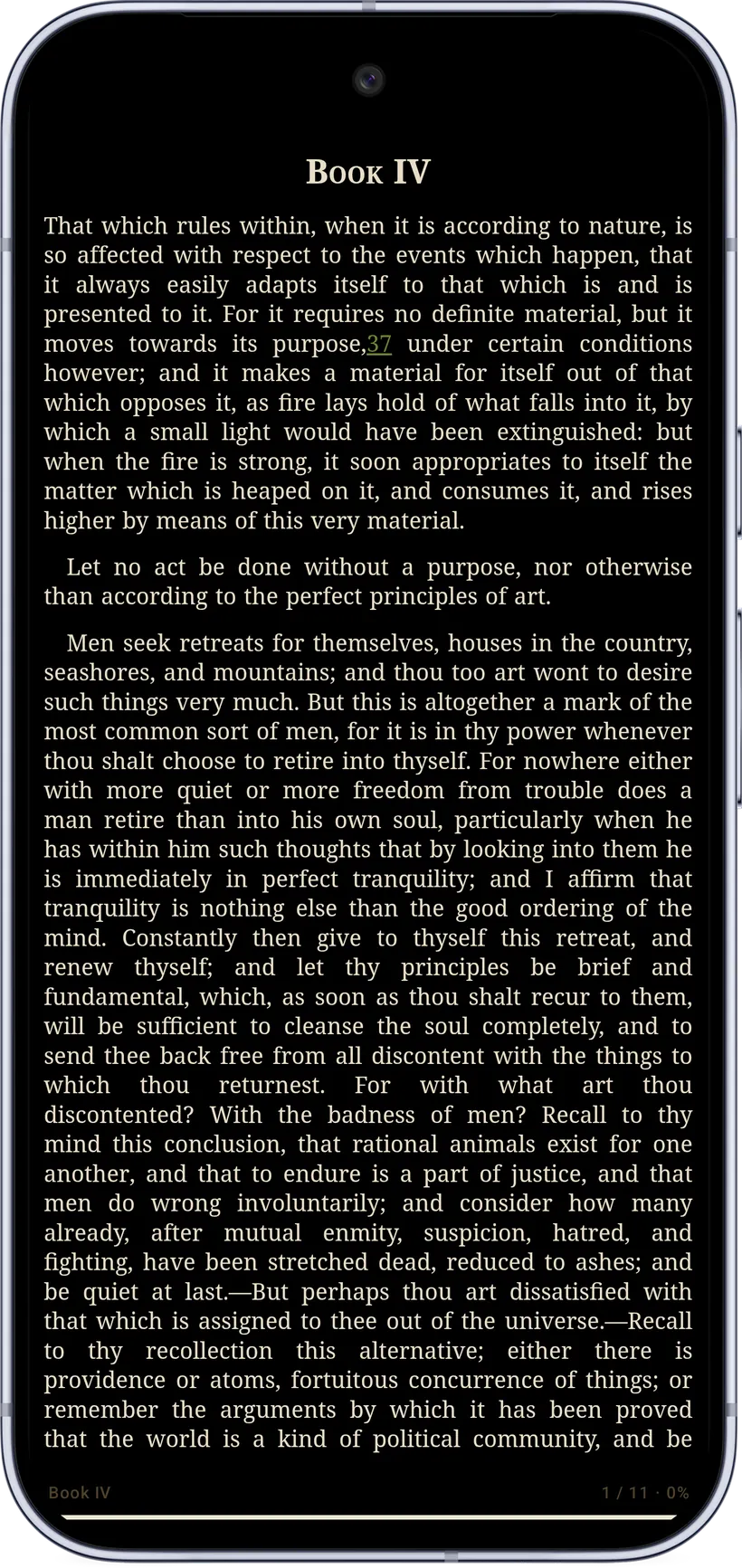
- Paper textures (Pro): Kraft, White, and Cream paper with real grain/fiber, for a more book‑like reading experience.
- Custom: pick your own background and text colors, optionally a background image.
The status‑bar icons automatically switch light/dark to stay legible on whichever theme you pick.


Typography & comfort
- Font family and weight, font size, line height, and per‑side margins.
- Text alignment (left/justify/etc.), hyphenation, and word spacing.
- Text shadow to keep publisher‑colored text legible on tinted pages.
- Warmth filter — a warm overlay across the whole screen for night reading.
- Keep screen on while reading (on by default).
- High contrast and reduced motion options.
Everything lives in one tidy settings sheet, applied live as you drag:


Force remove white background from images (Pro) cuts the solid white backdrop out of book images so they sit on the page like stickers — great for figures and diagrams on a tinted theme. Results vary by book, so it's a toggle you can flip per library:


Zen Reading
A dedicated Zen Reading settings section for distraction-free sessions:
- Zen mode — turns on Do Not Disturb while you read, silencing calls, notifications, and vibrations (alarms still come through). Needs a one-time Do Not Disturb access grant via a system screen.
- Hide status bar — hides the status bar inside the reader for a cleaner page.


5. Selecting text: highlights, notes & more
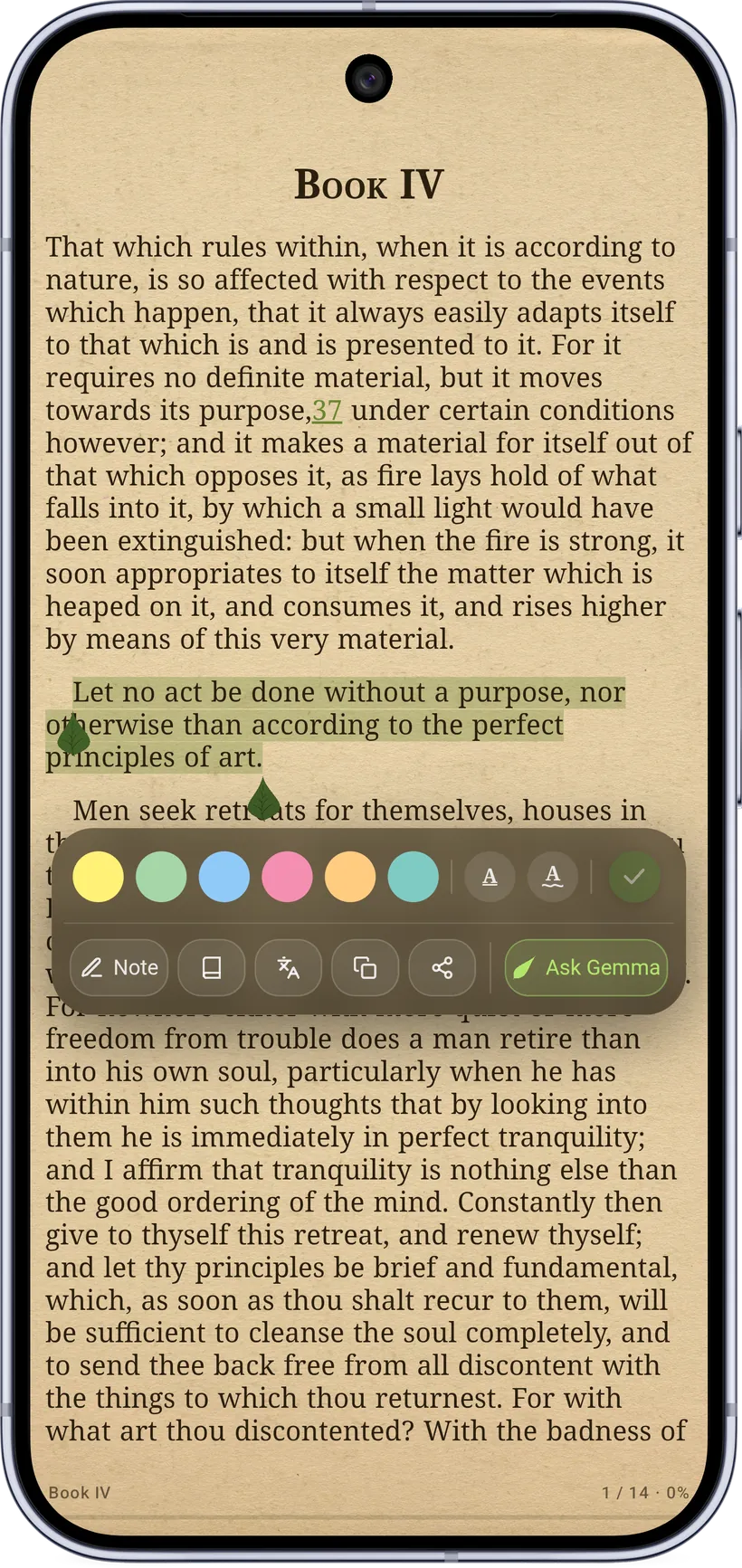
Select text (a long‑press picks a word; drag the handles to extend) and a frosted‑glass selection bar appears over the page. A magnifier loupe follows your finger while you drag, so you can place the selection precisely. The frosted-glass will match with any reader theme you choose, so it will never feel out of place.
The selection bar packs every text action into one row. From left to right you can Highlight, Underline / squiggly underline, add a Note, look a word up in the Dictionary, Translate the selection, Copy it, Share it as a card, or hand it to the on‑device AI with Ask Gemma.


Here's what each button does:

In detail, from the selection bar:
- Highlight in one of six colors — Yellow, Green, Blue, Pink, Orange and Teal. (A seventh, Purple, is reserved for AI‑generated highlights.)
- Underline or squiggly underline the passage instead of filling it.
- Note — attach a note to the selection (the Note button fills in to show you're in note mode).
- Dictionary — look the word up (see Dictionary & translation).
- Translate — send the selection to the Google Translate app (it auto‑detects the language; no model downloads). If Translate isn't installed, you're told so.
- Copy the text, or Share as card (see below).
- Ask Gemma — hand the passage to the on‑device AI (see AI Learning Mode).


Highlights, notes & bookmarks
Every highlight, underline, note, and bookmark is saved per book and listed in the reader's Highlights & Notes sheet. Tapping one in the sheet jumps to where you saved it; tapping a highlight on the page opens an edit pop‑up where you can change its color/style, edit the note, Share it, or Delete it.


The same bars give you a chapter table of contents, in‑book search, and bookmarks:


Share as a card
Any highlight (or a definition) can be turned into a shareable quote card: pick a theme (Kraft, Olive, Paper, OLED), edit the title/author/note inline, and share the rendered image. The card is exactly what you see — and an empty field (like a blank note) simply doesn't appear.


6. Dictionary & translation
Garden Reads has a full offline dictionary stack, reachable from the Dictionary button on the selection bar and configured under Settings → Dictionaries.
Looking a word up
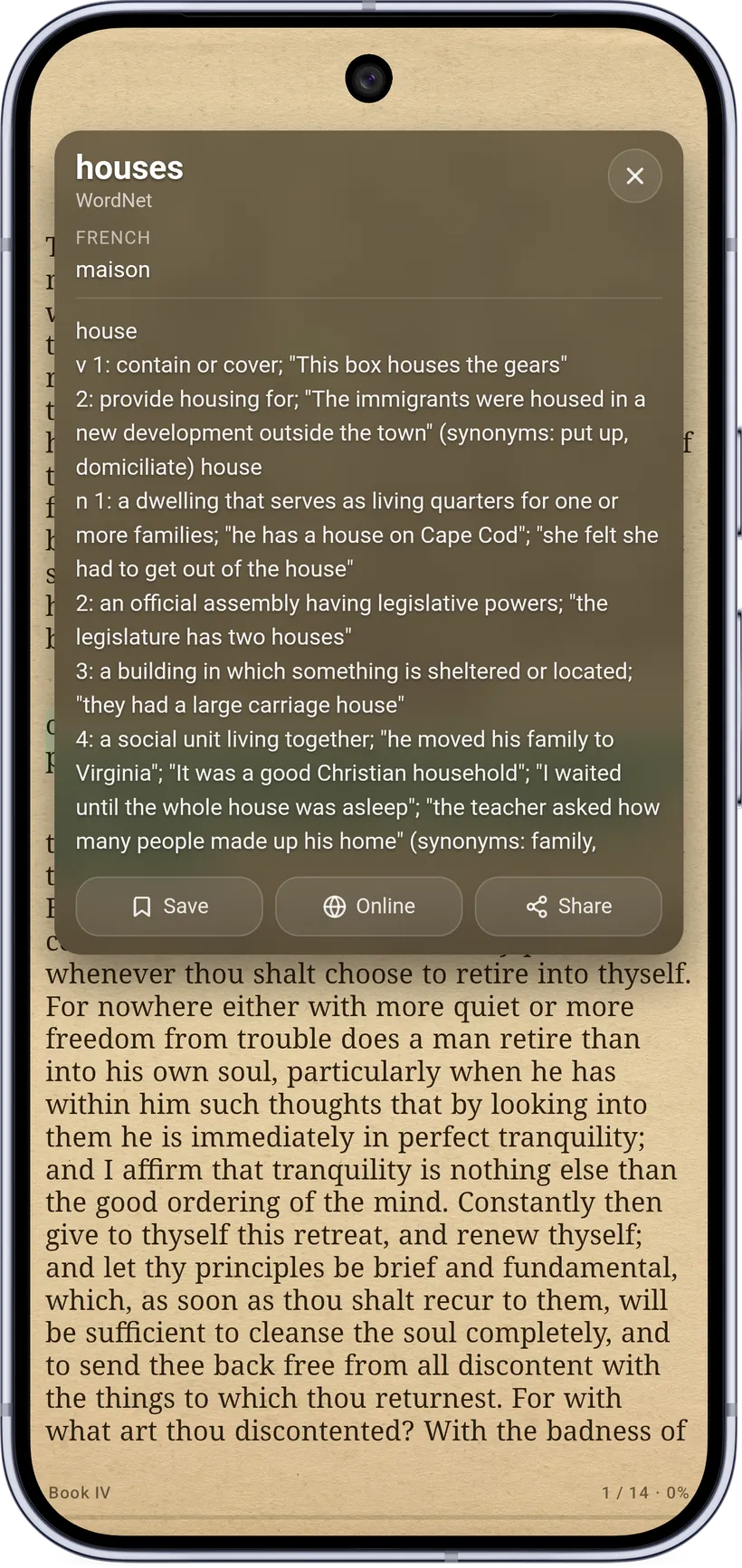
Tapping Dictionary opens an in‑app definition card right inside the reader — no internet needed. The card shows the word, the dictionary name, the definition (which you can trim down to just the sense you want), and actions to Save it to your vocabulary, open it Online, or Share it as a card. If you have a translation package installed for the book's language, the word's translations appear as rows under the headword, above the definition. So you get a word definition AND translation at the same time.


The Dictionaries screen
One screen, three sections:
- In‑app offline dictionaries — import a StarDict
.zip, browse FreeDict translation dictionaries, or download a monolingual language dictionary (Languages download on demand). The installed list lets you enable/disable or delete each one. - Dictionary app — pick an installed external dictionary app to hand words to for more detailed explanations if the offline doesn't suit your needs.
- Custom online dictionaries — paste your own per‑language search URLs (use
{word}as the placeholder). A back-up online alternative.
A Lookup priority control lets you order the sources (in‑app dictionaries, dictionary app, online) so the first one with a result wins. A separate Lookup language setting can force a language or auto‑detect.


Free vs Pro: looking up, saving words, and the vocabulary list are free. Importing custom dictionaries, downloading language packs, custom online URLs, and selecting an external dictionary app are Pro.
7. Vocabulary
Saved words go to your Vocabulary:
- Settings → Saved words shows every word you've saved, in a library‑style screen (list/grid, size slider, search, sort).
- The reader's per‑book Vocabulary sheet shows only the current book's words.
Saved words deliberately outlive the book they came from (deleting a book never deletes its words), and the source title is kept so you remember where a word came from.


8. Listening: audiobooks & text‑to‑speech
Audiobooks
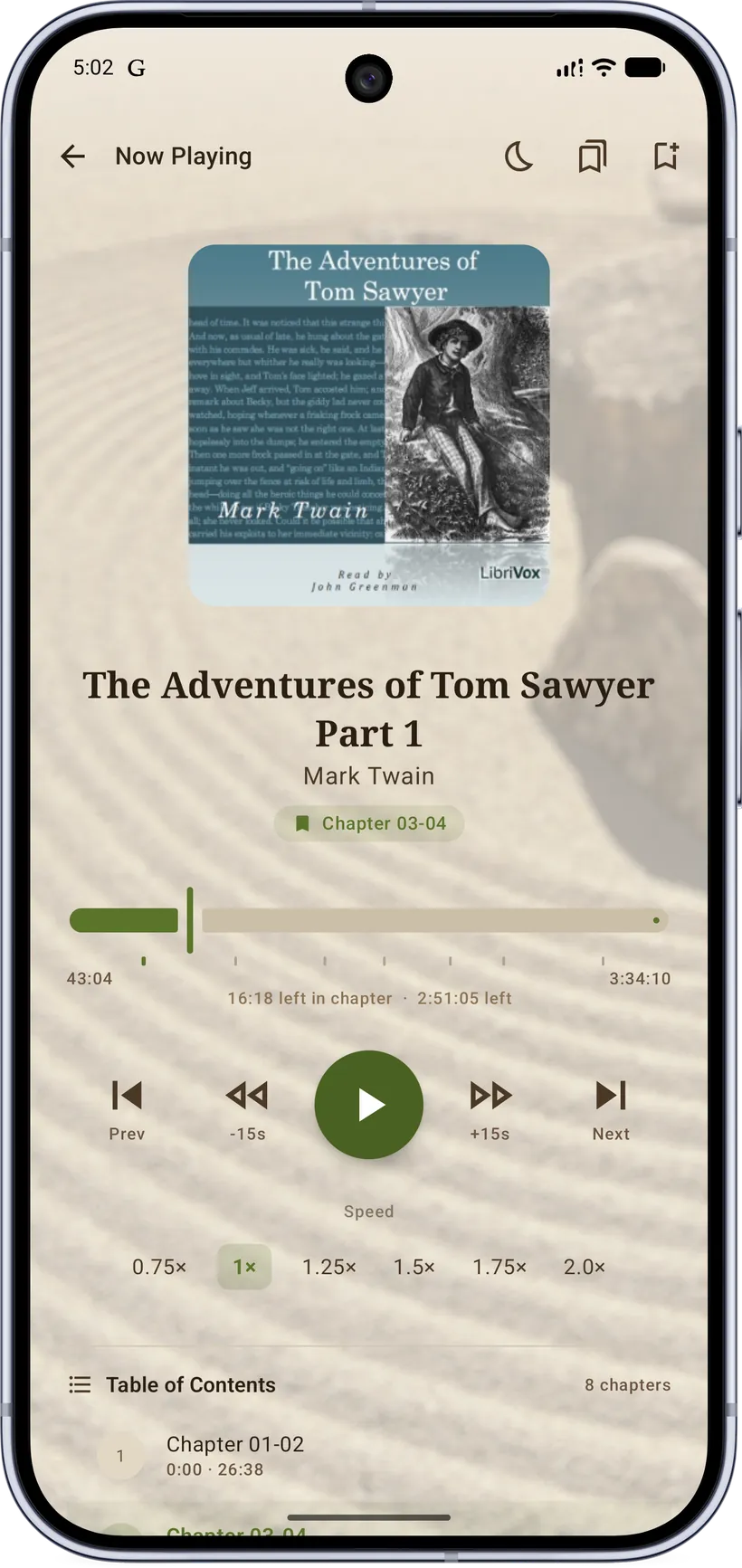
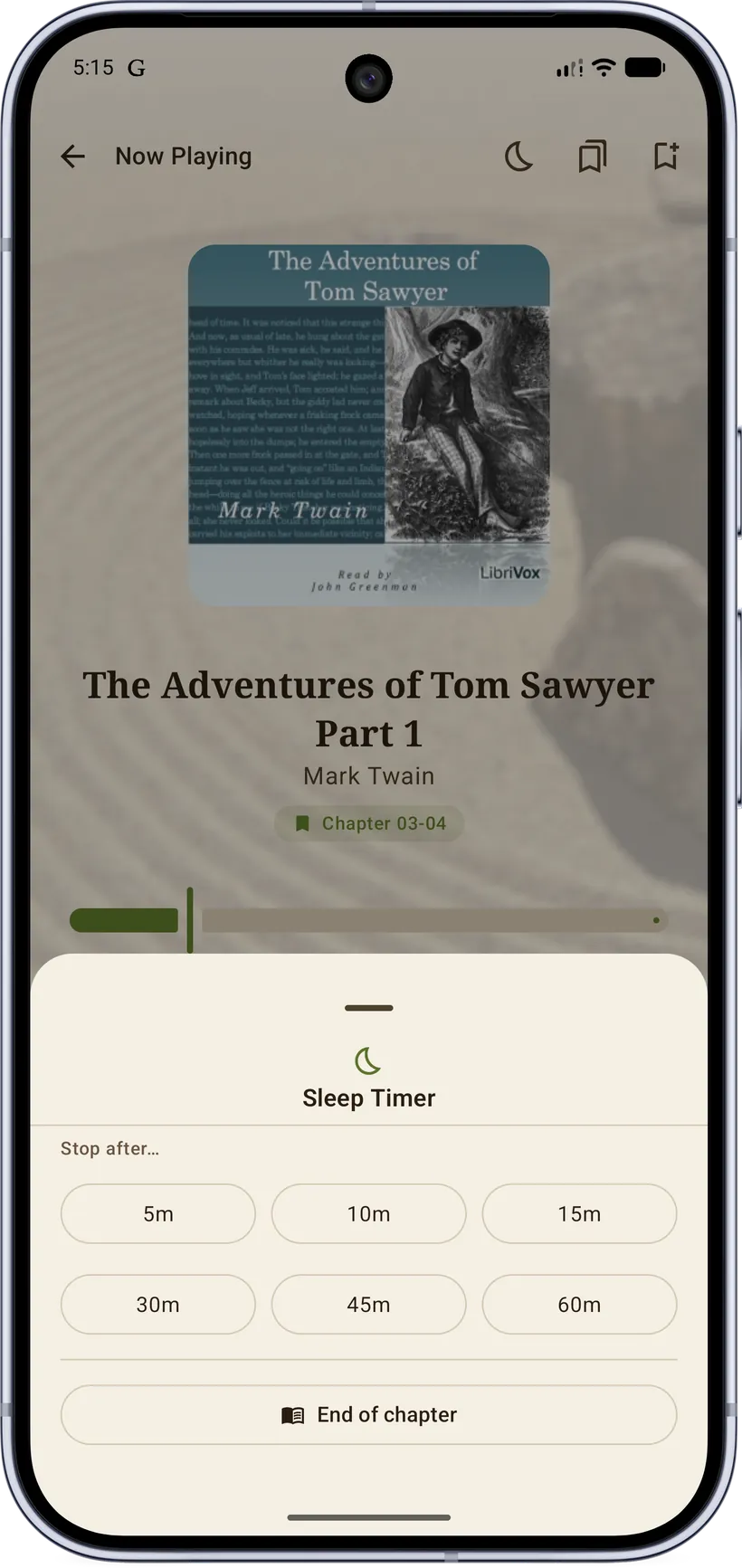
Switch the library to Listen mode for your audiobooks. The player offers play/pause, skip forward/back (configurable intervals), rewind‑on‑resume, chapter navigation for chaptered M4B files, earmarks (save a spot and jump back to it later — bookmarks for audio), and a sleep timer (timed or end‑of‑chapter). Audiobookshelf titles stream from your server with progress syncing both ways.


Text‑to‑speech
Any ebook can be read aloud with the device's text‑to‑speech, with adjustable speech rate — handy for hands‑free or eyes‑free reading.


9. The Library
The library is your home screen — every book and audiobook you've added, organized the way you like.
Read vs. Listen
A toggle at the top of the navigation drawer switches the whole library between Read (ebooks, PDFs, comics) and Listen (audiobooks). Each mode has its own shelves and its own continue‑reading row, so your reading and listening stay cleanly separated.


Views, search, and sort
- Grid or list. A size slider lets you go from a dense list to large cover tiles and everything in between; the choice is remembered per device.
- Search filters by title/author as you type.
- Sort by author, title, recently read, date added, and more.
- Filter by status (unread, reading, finished) and favorites.


The Continue Reading row
Continue Reading / Continue Listening sits at the top of the library and surfaces whatever you were last in. Prefer a clean grid? A single toggle hides it — the same shelf with the row on, then off:


Shelves (collections)
Shelves are your custom collections (e.g. Philosophy, Poems, Novels). They live in the drawer:
- Create a shelf with the + next to "Shelves."
- Reorder by dragging; delete by dragging a shelf into the delete zone.
- Tap a shelf to filter the library to just those books.
- A book can belong to several shelves at once.

Selecting and acting on books
Long‑press a book to enter selection mode. From the selection bar you can add to / remove from shelves, mark finished/unfinished, favorite, pin to top, refresh metadata, move to/from the Secure Library, delete, and more. The Favorite action shows a vivid heart to favorite and a muted heart to un‑favorite, so the toggle state is obvious.


Secure Library
A pinned, lockable shelf for private books. Books moved here are hidden from the main library and gated behind device biometrics/credentials. (Pro.)

10. The navigation drawer
Swipe from the left edge (or tap the menu) to open the drawer. Top to bottom:
- Garden Reads wordmark (with a PRO chip if you've upgraded).
- Read / Listen mode toggle.
- Shelves — Secure Library first, then your collections with per‑shelf counts.
- A footer that sits on the grass strip with three evenly‑spaced actions: Insights · Vocabulary · Settings.
The drawer background is a living scene to give the app its identity and to give the user a "zen" experience. It animates only while the drawer is open to save battery. It follows day and night, and you can also set the app theme to taste.


11. Getting books in
- Import files — bring in EPUB/PDF/MOBI/etc. from device storage.
- Calibre — connect to a Calibre Content Server and browse/import over OPDS. Multi‑library servers show a library picker so you import from the right one.
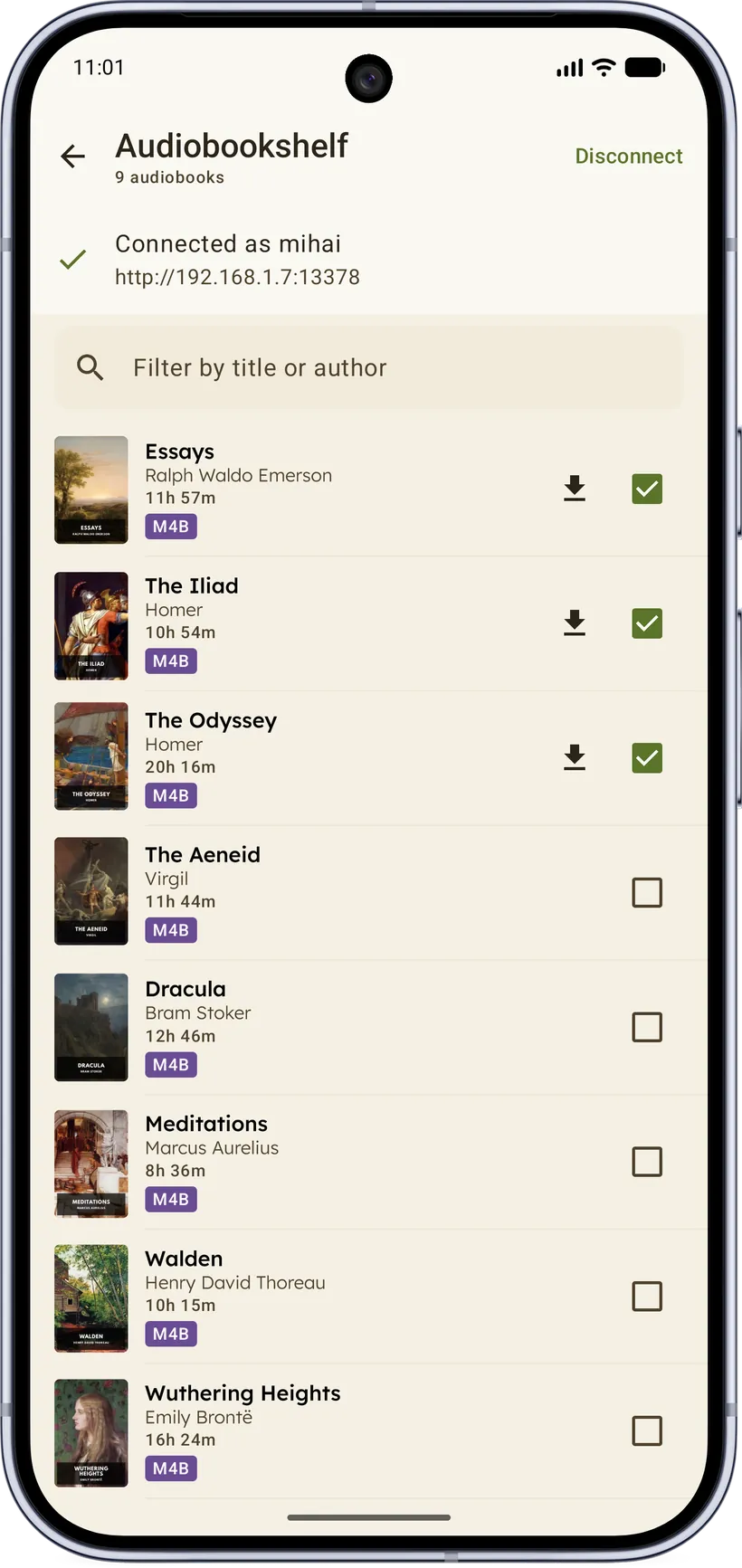
- Audiobookshelf — connect your Audiobookshelf server and stream its audiobooks as books, with two‑way progress sync.
- Free starter books — onboarding offers a one‑tap "Add books for free" set so a fresh install isn't empty.


Connect a Calibre server and browse your whole library over the network:


Stream your Audiobookshelf library, with progress syncing both ways:


Or grab free public‑domain classics — ebooks and audiobooks — from right inside the app:


12. Insights & reading stats
Insights (in the drawer footer) tracks your habits: total reading and listening time, a daily streak, longest session, books finished, words looked up, AI queries, and a per‑day reading history that drives the streak and charts. You can set a daily reading goal, and reset stats if you want a clean slate.


13. Cloud sync & backup
Garden Reads keeps your data portable without locking you to the cloud.
Google Drive sync
Connect your Google account and Garden Reads syncs to a visible Garden_Reads_Sync folder in your own Drive:
- Always synced: your annotations (highlights/notes/bookmarks) and settings (reader/app preferences, shelves, stats/Insights). These are tiny and sync quietly in the background.
- Optional (toggles): book files and audiobook files. Off by default to save Drive space; turn them on to have the actual files appear on every device.
Sync runs in the background (pull when you open the app, push when you leave), survives the app being closed, and retries on a flaky connection. A progress notification appears only when a real book‑file transfer is happening — routine annotation/settings syncs are silent. If a sync gives up after retrying, you get a dismissible heads‑up rather than a silent failure.
Highlights are matched to books by identity (title + author), not by file, so they re‑attach to the right book even if it was added on another device or re‑imported.
Off‑grid backup file
Prefer not to use Drive? Settings → Export backup writes a single .json file with everything
sync carries except the book files (settings, shelves, stats, book metadata & progress, all
highlights/notes, and your vocabulary). Import backup restores it. Highlights for books you don't
have yet are held and re‑attach automatically when you add those books.


14. Haptics & feel
Haptic feedback is grouped into four toggleable categories — selection, sliders, navigation, and page‑flip — each with its own strength, under a master switch. Tune it to taste; the choices sync with your other settings.


15. What's free vs. Pro
Garden Reads is fully usable for free. A one‑time Pro purchase unlocks the heavier extras:
| Free | Pro |
|---|---|
| Reading all supported formats | Offline dictionary downloads (language packs, FreeDict, .zip import) |
| Highlights, notes, bookmarks, share cards | Custom online dictionary URLs |
| Word lookup, saved words, vocabulary | External dictionary‑app selection |
| Core + seasonal reader themes | Paper‑texture reader themes, custom theme |
| Google Drive sync & backup file | Secure Library |
| Insights, streaks, goals | |
| On‑device AI (after model download) |
(Non‑Pro users can watch a rewarded ad to pause ads for an hour; Pro removes ads entirely.)
16. Privacy & offline summary
- AI is on‑device only (Gemma 4) — never cloud, private and works offline.
- Dictionaries and translation packs are local once installed.
- Your library stays on your device; Drive sync is your own Drive and you control what it holds.
- Reading data (progress, highlights, stats) is yours — exportable as a single backup file at any time.
17. Quick tips
- Tap the center of the page to show/hide the reader bars.
- Long‑press a word to start a selection; drag the handles (the loupe helps you aim).
- Use Translate for foreign‑language passages and Dictionary for definitions in the book's language — they're distinct tools side by side on the selection bar.
- Trim a definition down before you Save or Share it — only the part you keep is stored.
- Set Lookup priority so your favorite dictionary source is tried first.
- Turn on book‑file sync only if you want the actual files mirrored across devices; leave it off to keep Drive light and still sync highlights + settings.
- Moving to a new phone? Export a backup, install Garden Reads, add your books, and Import — highlights re‑attach to their books automatically.